📌 The Definitive 2026 Manual for Diagnosing, Fixing, and Preventing Dead Pixels, Stuck Pixels, Screen Burn-In, and Display Discoloration on Any Smartphone
📑 Table of Contents
- 🔍 Understanding Phone Screen Pixels: The Basics
- ⚠️ Types of Pixel Problems: A Visual Guide
- ⚡ Quick Diagnostic Tests (Do These First)
- 🩹 Fix 1: How to Fix Stuck Pixels (Software Methods)
- 🔧 Fix 2: Physical Pressure Method for Stuck Pixels
- 🌡️ Fix 3: Heat Treatment for Stubborn Stuck Pixels
- 💀 Fix 4: When a Dead Pixel Is Truly Dead
- 🔥 Fix 5: Screen Burn-In and Image Retention Solutions
- 🎨 Fix 6: Fixing Screen Discoloration, Lines, and Banding
- 📱 Platform-Specific Fixes (iPhone vs. Android)
- 🛡️ Prevention: How to Protect Your Screen Long-Term
- 📊 Pixel Problem Diagnosis & Solution Table
- ❓ Frequently Asked Questions
- ✅ Final Master Checklist
🔍 Understanding Phone Screen Pixels: The Basics
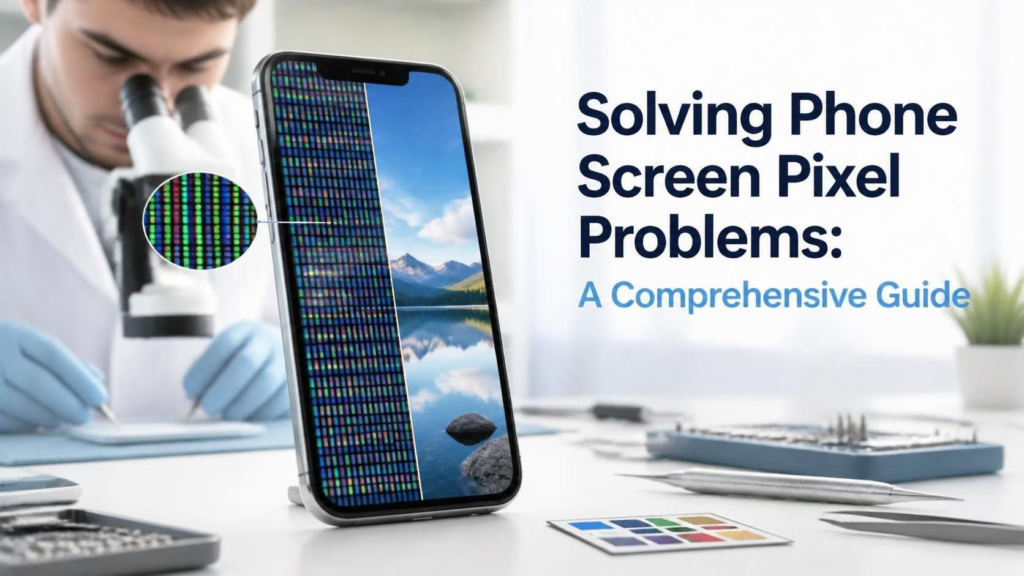
Your smartphone screen is a masterpiece of modern engineering. Whether you’re scrolling through Instagram, watching a 4K video, or reading an article like this one, every image you see is composed of millions of tiny dots called pixels. These pixels work in unison to create the vibrant, sharp visuals we’ve come to expect from our devices. But when even a single pixel malfunctions, it can become an infuriating distraction that draws your eye away from everything else on the screen. 😤
What Exactly Is a Pixel?
A pixel (short for “picture element”) is the smallest controllable unit of a digital image displayed on your screen. Modern smartphones use one of two primary display technologies:
| Display Technology | How It Works | Common In |
|---|---|---|
| OLED (Organic Light-Emitting Diode) | Each pixel emits its own light individually; no backlight needed | iPhone Pro, Samsung Galaxy, Google Pixel, flagship Android |
| LCD (Liquid Crystal Display) | Pixels block or allow light from a uniform backlight | Budget phones, older models, some tablets |
Understanding which technology your phone uses is critical because OLED and LCD pixels fail differently, and the fixes vary accordingly.
Pixel Structure: Subpixels Explained
Each pixel is actually made up of three smaller subpixels — one red 🔴, one green 🟢, and one blue 🔵. By varying the intensity of these three subpixels, your screen can produce virtually any color in the visible spectrum.
Pixel = Red Subpixel + Green Subpixel + Blue SubpixelWhen all three subpixels are at maximum brightness, you see white ⚪. When all are off, you see black ⚫. If one subpixel fails, the pixel may appear as a persistent red, green, or blue dot — or a combination color like yellow (red + green).
According to DisplayMate Technologies, the leading display calibration and evaluation authority, even premium smartphone panels can have a small number of pixel defects straight from the factory. Most manufacturers consider 3-5 dead pixels within acceptable quality limits for mass production, though premium brands like Apple and Samsung typically have stricter standards.
⚠️ Types of Pixel Problems: A Visual Guide
Not all pixel defects are created equal. Before attempting any fix, you must correctly identify what you’re dealing with. Misdiagnosing the problem can lead to wasted effort or even further damage.
📌 Type 1: Stuck Pixels
| Characteristic | Description |
|---|---|
| Appearance | A single bright dot (red, green, blue, white, or yellow) that never changes |
| Behavior | Always lit, regardless of screen content |
| Cause | Subpixel transistor stuck in the “on” position |
| Fixable? | ✅ Yes — often fixable with software or gentle pressure |
A stuck pixel occurs when one or more subpixels remain permanently lit while the others function normally. On a black screen, a stuck pixel will appear as a bright, glowing dot. It’s the most common pixel defect and also the most fixable.
📌 Type 2: Dead Pixels
| Characteristic | Description |
|---|---|
| Appearance | A tiny black dot that remains black on all backgrounds |
| Behavior | Never lights up, regardless of screen content |
| Cause | Complete transistor or subpixel failure; no power reaching the pixel |
| Fixable? | ❌ No — hardware failure requiring screen replacement |
A dead pixel is a pixel where all subpixels have failed completely. It appears as a permanent black dot on every background color. Unlike stuck pixels, dead pixels represent a complete electrical failure and cannot be revived through software or physical methods.
📌 Type 3: Hot Pixels (OLED Only)
| Characteristic | Description |
|---|---|
| Appearance | A bright white or colored dot visible on dark backgrounds |
| Behavior | Always lit at maximum brightness |
| Cause | OLED subpixel degradation or transistor malfunction |
| Fixable? | ⚠️ Rarely — sometimes responds to pixel refreshers |
Hot pixels are essentially an aggressive form of stuck pixel, most common on OLED displays. They are particularly visible in dark mode or when viewing black content.
📌 Type 4: Screen Burn-In / Image Retention
| Characteristic | Description |
|---|---|
| Appearance | Ghostly outline of UI elements (keyboard, status bar, navigation buttons) |
| Behavior | Fades partially but never fully disappears |
| Cause | Uneven OLED pixel wear; static images displayed for too long |
| Fixable? | ⚠️ Partially — can be mitigated but rarely fully reversed |
Burn-in is the gradual degradation of OLED pixels that have been displaying the same bright image for extended periods. The navigation bar, keyboard area, and status bar are the most commonly burned-in regions.
📌 Type 5: Vertical/Horizontal Lines
| Characteristic | Description |
|---|---|
| Appearance | A solid line of dead or discolored pixels running across the screen |
| Behavior | Static, unchanging, often spans the full width or height |
| Cause | Damaged display driver, loose flex cable, or physical trauma |
| Fixable? | ❌ No — requires screen or motherboard replacement |
Lines indicate a structural failure in the display matrix or its connection to the logic board. This is beyond DIY repair.
📌 Type 6: Color Banding and Discoloration
| Characteristic | Description |
|---|---|
| Appearance | Visible stripes or patches of incorrect color in gradients |
| Behavior | Appears in low-light photos, skies, and dark gradients |
| Cause | Insufficient color bit depth, compression artifacts, or panel defect |
| Fixable? | ⚠️ Sometimes — software fixes for artifacts, hardware for panel defects |
⚡ Quick Diagnostic Tests (Do These First)
Before attempting any fix, confirm exactly what type of pixel defect you’re dealing with. These tests take under 2 minutes.
🧪 Test 1: The Solid Color Screen Test
Visit a pixel-testing website or use a solid-color image to examine your screen:
| Color to Display | What to Look For |
|---|---|
| Pure Black 🔲 | Stuck pixels will appear as bright dots; dead pixels are invisible |
| Pure White ⬜ | Dead pixels appear as black dots; dark subpixel defects show as colored spots |
| Pure Red 🟥 | Green and blue subpixel failures become visible |
| Pure Green 🟩 | Red and blue subpixel failures become visible |
| Pure Blue 🟦 | Red and green subpixel failures become visible |
Recommended Testing Tools:
- Dead Pixel Test — Browser-based, no download needed
- JScreenFix — Online stuck pixel repair tool
- Built-in: Some phones include display testing in service menus
🧪 Test 2: The Magnifying Glass Test
Use a jeweler’s loupe or your phone’s macro camera to zoom in on the suspect pixel:
- If the dot is perfectly square and one solid color, it’s likely a stuck or dead pixel
- If the dot is irregular or smudgy, it may be dust under the screen protector or a surface scratch
🧪 Test 3: The Screen Protector Check
Many “pixel defects” are actually dust particles trapped under a screen protector or tiny air bubbles. Peel off your screen protector and run the solid color test again.
🩹 Fix 1: How to Fix Stuck Pixels (Software Methods)
Stuck pixels are the most common and most fixable display defect. The goal is to rapidly cycle the subpixel through all colors at high frequency, potentially unsticking the frozen transistor.
🛠️ Method 1: JScreenFix (Browser-Based)
JScreenFix is the gold standard for online stuck pixel repair:
| Step | Action |
|---|---|
| 1 | Visit JScreenFix on your phone’s browser |
| 2 | Click “Launch JScreenFix” |
| 3 | Drag the flashing square to cover the stuck pixel |
| 4 | Leave it running for 10-30 minutes |
| 5 | Check if the pixel has returned to normal |
The rapidly flashing noise pattern exercises the stuck subpixel thousands of times per minute, often jolting it back to normal operation.
🛠️ Method 2: Dedicated Stuck Pixel Fixer Apps
| App Name | Platform | How It Works |
|---|---|---|
| Dead Pixel Detect and Fix | Android | Rapid color cycling at maximum brightness |
| Pixel Fixer | iOS / Android | Customizable flashing patterns |
| LCD DeadPixel Test | Android | Combined testing and fixing utility |
How to use these apps:
- Launch the app
- Select “Fix” or “Repair” mode
- Position the flashing area over the stuck pixel
- Set timer for 15-60 minutes
- Use maximum screen brightness 🔆
- Do not interact with the phone during the process
💡 Pro Tip: Run the fixer for multiple sessions. Some stubborn stuck pixels require 3-5 cycles of 30 minutes each before they respond.
🛠️ Method 3: YouTube Pixel Fix Videos
Search YouTube for “stuck pixel fix” and play a full-screen rapidly flashing RGB video for 30-60 minutes. Ensure:
- Phone is plugged in (this drains battery fast)
- Screen brightness is at 100%
- Video is playing in full-screen landscape mode
🔧 Fix 2: Physical Pressure Method for Stuck Pixels
If software methods fail, gentle physical pressure can sometimes reseat the liquid crystal or stimulate a stuck transistor.
⚠️ Important Warnings Before You Begin
| ⚠️ Risk | Mitigation |
|---|---|
| Cracking the screen | Use minimal pressure — barely more than a tap |
| Damaging OLED pixels | Never press hard on OLED screens; they are more fragile than LCD |
| Scratching the display | Use a soft, lint-free cloth between your finger and the screen |
| Causing new dead pixels | Stop immediately if you see color spreading or distortion |
Step-by-Step Pressure Method
| Step | Action |
|---|---|
| 1 | Turn off your phone completely ⏻️ |
| 2 | Place a soft microfiber cloth over the stuck pixel |
| 3 | Use a dull, soft object — a rubber eraser, a capped pen, or your finger wrapped in cloth |
| 4 | Apply gentle, steady pressure directly on the pixel for 5-10 seconds |
| 5 | Release pressure |
| 6 | Turn the phone back on |
| 7 | Run the solid color test to check |
🔁 Repeat: You can try this 3-5 times, but if there’s no improvement after the third attempt, stop. Excessive pressure will cause permanent damage.
🌡️ Fix 3: Heat Treatment for Stubborn Stuck Pixels
Gentle, controlled heat can sometimes reactivate a stuck subpixel by slightly expanding the liquid crystal or reflowing a microscopic solder joint.
⚠️ Safety First
| ❌ Never Do This | ✅ Do This Instead |
|---|---|
| Use a hairdryer on high heat | Use a hairdryer on low/cool setting from 30cm away |
| Apply direct flame | Never use any open flame |
| Use a microwave | This will destroy your phone |
| Heat for more than 2 minutes | Limit each session to 30-60 seconds |
| Heat while phone is on | Always power off first |
Heat Treatment Procedure
| Step | Action |
|---|---|
| 1 | Power off the phone completely |
| 2 | Place the phone on a cool, flat surface |
| 3 | Turn hairdryer to low/cool setting |
| 4 | Hold it 30cm (12 inches) from the screen |
| 5 | Move in slow circles over the stuck pixel area for 30-60 seconds |
| 6 | Let the phone cool to room temperature |
| 7 | Power on and test |
🌡️ Temperature Limit: Do not exceed 40°C (104°F) on the screen surface. If it feels hot to the touch, it’s too hot.
💀 Fix 4: When a Dead Pixel Is Truly Dead
A dead pixel — appearing as a permanent black dot on all backgrounds — represents a complete electrical failure. Unlike stuck pixels, there is no software or physical method that can revive it.
How to Confirm a Dead Pixel
| Test | Result for Dead Pixel |
|---|---|
| Pure white screen | Black dot remains black |
| Pure red screen | Black dot remains black |
| Pure green screen | Black dot remains black |
| Pure blue screen | Black dot remains black |
| JScreenFix for 1 hour | No change whatsoever |
Your Options for Dead Pixels
| Option | Details | Cost |
|---|---|---|
| 1. Learn to live with it | A single dead pixel on a high-resolution screen is often invisible during normal use | Free |
| 2. Warranty replacement | Many manufacturers replace screens with even 1 dead pixel under warranty | Free (if under warranty) |
| 3. Screen replacement | Visit an authorized service center for a new display module | $100 – $400 |
| 4. Insurance claim | If you have device protection, file a claim | Varies by plan |
📋 Warranty Tip: Check your manufacturer’s dead pixel policy. Apple typically requires multiple dead pixels for a warranty replacement, while some Android manufacturers (like Samsung) may replace for a single dead pixel on flagship models within the first year.
🔥 Fix 5: Screen Burn-In and Image Retention Solutions
Burn-in is the bane of OLED smartphone users. It occurs because OLED pixels wear out unevenly — pixels that display bright static elements (like the navigation bar) degrade faster than pixels that show varied content.
Burn-In vs. Image Retention: Know the Difference
| Feature | Image Retention | Burn-In |
|---|---|---|
| Duration | Temporary — fades within minutes to hours | Permanent — never fully disappears |
| Cause | Static image left on screen for hours | Years of uneven pixel wear |
| Reversibility | ✅ Fully reversible | ⚠️ Partially mitigable |
| Severity | Mild ghosting | Permanent, visible shadow |
🛠️ Fix 5A: Pixel Refresher / Screen Burn-In Protection Tools
For Samsung Galaxy (OLED):
Settings → Display → Screen Burn-In Protection → EnableSamsung phones also include a “Pixel Refresher” that runs automatically when the screen is off.
For Google Pixel:
Settings → Display → Screen Saver → Enable
Settings → Display → Sleep → Set to 30 seconds or 1 minute
For iPhone (OLED models):
Settings → Display & Brightness → Auto-Lock → 30 Seconds or 1 Minute
Settings → Accessibility → Display & Text Size → Auto-Brightness → ON
🛠️ Fix 5B: Invert Colors and Full-Screen Content
Run an inverted color pattern to exercise the unevenly worn pixels:
| Step | Action |
|---|---|
| 1 | Display a pure white screen for 1 hour |
| 2 | Switch to a pure black screen for 1 hour |
| 3 | Repeat the cycle 3-5 times |
| 4 | Display full-screen colorful content (games, videos) for several hours |
This won’t reverse burn-in, but it can even out the wear and make the ghosting less noticeable.
🛠️ Fix 5C: Use Burn-In Fixer Apps
| App | Platform | Method |
|---|---|---|
| OLED Saver | Android | Displays inverse image of burned area |
| Burn-In Remover | Android | Rapid color cycling of affected region |
| Screen Burn-In Tool | Android | Automated pixel exercise routines |
⚠️ Reality Check: True OLED burn-in is permanent physical degradation. No app can fully restore worn pixels. These tools only reduce visibility.
🎨 Fix 6: Fixing Screen Discoloration, Lines, and Banding
Not all screen problems are single-pixel defects. Sometimes entire regions fail.
🛠️ Fix 6A: Color Banding in Gradients
Color banding appears as visible stripes in areas that should show smooth color transitions (like skies or shadows).
Causes and Fixes:
| Cause | Fix |
|---|---|
| Low bit-depth display | Enable “Smooth Gradients” if available in display settings |
| Image compression | The issue is the file, not your screen — use higher quality images |
| Panel defect | If visible in screenshots, it’s software; if only on screen, it’s hardware |
| Night Mode / Blue Light filters | Disable “Eye Comfort” or “Night Light” temporarily to test |
🛠️ Fix 6B: Vertical or Horizontal Lines
Lines across the screen indicate hardware failure — either a damaged display driver, a severed flex cable, or a cracked internal layer.
| Line Type | Likely Cause | Fix |
|---|---|---|
| Single vertical line | Damaged column driver | Screen replacement required |
| Single horizontal line | Damaged row driver | Screen replacement required |
| Multiple lines | Severe physical damage or water ingress | Immediate professional repair |
| Flickering lines | Loose flex cable connection | Cable reseat or replacement |
🚫 No DIY Fix: Lines cannot be fixed with software. Do not attempt pressure methods — you will make it worse.
🛠️ Fix 6C: Yellow/Blue/Pink Tint
A uniform color tint across the entire screen can sometimes be corrected:
| Cause | Fix |
|---|---|
| Night Mode / Eye Comfort ON | Disable in display settings |
| Color temperature setting | Adjust to “Standard” or “Natural” |
| True Tone / Adaptive Color | Disable temporarily to test |
| Manufacturing variation | Some OLED panels run warm; use color calibration tools |
| Water damage | Professional cleaning and drying required |
📱 Platform-Specific Fixes (iPhone vs. Android)
🍎 iPhone-Specific Considerations
| Feature | iPhone Behavior | Fix |
|---|---|---|
| True Tone | Automatically adjusts white balance based on ambient light | Can make screen appear yellow; disable to test: Settings → Display & Brightness → True Tone |
| Night Shift | Warms screen colors at night | Disable if colors look wrong during the day |
| OLED Panels | iPhone X, XS, 11 Pro, 12/13/14/15/16 Pro/Pro Max | Use auto-lock and avoid max brightness for static content |
| LCD Panels | iPhone 11, SE, XR | Less prone to burn-in; stuck pixels more common |
iPhone Service Menu (for testing):
There is no built-in service menu, but you can use Safari to visit Dead Pixel Test in full-screen mode.
🤖 Android-Specific Considerations
| Feature | Android Behavior | Fix |
|---|---|---|
| Always-On Display | Keeps pixels lit for clock/notifications | Use “Move clock” feature to prevent burn-in |
| Navigation Bar | Static buttons at bottom of screen | Enable gesture navigation to eliminate static elements |
| Screen Refresh Rate | High refresh (90Hz/120Hz/144Hz) | Higher refresh = more pixel exercise = less burn-in risk |
| Developer Options | Contains display testing tools | Settings → About Phone → Tap Build Number 7 times → Back to System → Developer Options → Drawing → Simulate Color Space |
Android Hidden Service Menu:
Many Android phones have built-in hardware test suites:
| Brand | Dial Code |
|---|---|
| Samsung | *#0*# |
| Xiaomi | *#*#6484#*#* |
| OnePlus | *#808# or *#899# |
| Sony | *#*#7378423#*#* |
| LG | *#546368#*<model># |
⚠️ Caution: These service menus provide low-level hardware testing. Do not change settings unless you know what you’re doing.
🛡️ Prevention: How to Protect Your Screen Long-Term
The best fix is prevention. Here’s how to keep your pixels healthy for years:
For OLED Screens (Burn-In Prevention)
| ✅ Do This | ❌ Avoid This |
|---|---|
| Use Auto-Lock at 30 seconds or 1 minute | Leaving static images on screen for hours |
| Enable Auto-Brightness | Running screen at 100% brightness constantly |
| Use Gesture Navigation instead of static buttons | Persistent navigation bars in the same position |
| Vary your wallpaper regularly | The same wallpaper for months or years |
| Use Dark Mode (reduces pixel wear overall) | Bright white backgrounds 24/7 |
| Enable screen shift / pixel refresher if available | Ignoring manufacturer burn-in protection features |
For All Screens (General Pixel Health)
| ✅ Do This | ❌ Avoid This |
|---|---|
| Keep screen brightness moderate | Max brightness in dark rooms |
| Use a high-quality screen protector | Cheap protectors that trap heat |
| Avoid extreme temperatures | Leaving phone in hot cars or freezing weather |
| Update your OS regularly | Outdated display drivers |
| Handle phone gently | Drops and pressure on the screen |
📊 Pixel Problem Diagnosis & Solution Table
| Symptom | Likely Type | Fix to Try | Success Rate | Difficulty |
|---|---|---|---|---|
| 🔴 Single bright red/green/blue dot | Stuck Pixel | JScreenFix / Pixel fixer app | 60-70% | ⭐ Easy |
| ⚫ Single black dot on all colors | Dead Pixel | None — warranty or replacement | 0% | ⭐⭐⭐ Hard |
| 👻 Ghost image of keyboard/status bar | Burn-In | Pixel refresher, inverse content | 20-40% mitigation | ⭐⭐ Medium |
| 📏 Vertical/horizontal line across screen | Driver/Cable Failure | Professional repair only | 0% DIY | ⭐⭐⭐ Hard |
| 🌈 Color stripes in gradients | Banding | Check image quality, disable filters | 50-70% | ⭐ Easy |
| 🟡 Entire screen yellow tint | Software/Setting | Disable Night Shift, True Tone, Eye Comfort | 90% | ⭐ Easy |
| 💧 Blotchy discoloration after drop | Physical Damage | Screen replacement | 0% DIY | ⭐⭐⭐ Hard |
| 🔆 Flickering pixels in dark mode | OLED Voltage Issue | Lower brightness, update software | 30-50% | ⭐⭐ Medium |
❓ Frequently Asked Questions
❓ Q1: Can dead pixels spread to other pixels?
A: Generally, no. A dead pixel is an isolated electrical failure and does not “infect” neighboring pixels. However, if the cause is a failing display driver or physical damage to the screen layer, additional pixels may fail over time. If you notice new dead pixels appearing weekly, your screen is degrading and needs replacement.
❓ Q2: Is one dead pixel enough for a warranty claim?
A: It depends on the manufacturer and your region:
- Apple: Typically requires multiple dead pixels or a cluster for warranty replacement
- Samsung: Often honors single-pixel replacements on flagship models within the first year
- Google: Case-by-case; contact support with photos
- EU Consumer Law: May entitle you to replacement regardless of pixel count
Always check your manufacturer’s official dead pixel policy.
❓ Q3: Do screen fixer apps really work?
A: For stuck pixels, yes — with a 60-70% success rate when used correctly. For dead pixels, no — they cannot revive electrically failed hardware. For burn-in, they provide mild mitigation at best. Manage your expectations: these tools are effective for stuck pixels only.
❓ Q4: Why do OLED screens get burn-in but LCDs don’t?
A: OLED pixels emit their own light and degrade (dim) with use. Pixels that display bright static elements wear out faster than pixels showing varied content. LCDs use a uniform backlight with liquid crystal shutters — the backlight ages evenly, and the shutters don’t degrade in the same way. Thus, LCDs are effectively immune to burn-in.
❓ Q5: Can I fix a stuck pixel by tapping the screen hard?
A: No. Gentle pressure can sometimes help, but hard tapping will cause permanent damage to the display matrix, potentially creating new dead pixels or cracking the digitizer. Always use minimal pressure with a soft cloth barrier.
❓ Q6: Does dark mode prevent burn-in?
A: Partially. Dark mode reduces the overall brightness of most pixels, which slows down wear. However, bright elements (like white text on black backgrounds) still wear those specific pixels. Dark mode helps, but it’s not a complete solution — you still need auto-lock and varied content.
❓ Q7: My screen has a pink line after I dropped it. Can software fix this?
A: No. A colored line after physical trauma indicates a damaged display flex cable or cracked internal layer. This is strictly a hardware issue requiring screen replacement. Do not waste time with software fixes.
✅ Final Master Checklist
Before concluding your screen needs replacement, verify you’ve completed every applicable step:
- 🧪 Ran solid color tests (black, white, red, green, blue)
- 🔍 Used a magnifier to confirm it’s a pixel defect, not dust
- 🛡️ Removed screen protector and retested
- 💻 Used JScreenFix or similar tool for 30-60 minutes
- 📱 Ran pixel fixer app for multiple sessions
- 🎬 Played full-screen pixel fix video for 1+ hours
- 👆 Attempted gentle pressure method (with cloth, minimal force)
- 🌡️ Tried controlled heat treatment (low setting, 30cm distance)
- ⚙️ Disabled Night Mode, True Tone, Eye Comfort, and blue light filters
- 🔄 Adjusted color temperature to “Standard” or “Natural”
- 🆕 Updated phone OS to latest version
- 🔄 Enabled auto-lock and auto-brightness
- 🧹 Cleaned screen thoroughly with microfiber cloth
- 📋 Checked manufacturer warranty and dead pixel policy
- 📸 Documented the defect with macro photos for support claim
🎯 Conclusion
A defective pixel — whether stuck, dead, or burned-in — can feel like a tiny crack in an otherwise perfect window. But unlike a cracked window, many pixel problems are fixable without professional intervention. Stuck pixels, which account for the majority of user complaints, respond well to software cycling, gentle pressure, and controlled heat. Even burn-in, while permanent, can be mitigated to the point of near-invisibility with smart usage habits.
The key is correct diagnosis. Wasting hours on software fixes for a dead pixel or a physically damaged line is futile. Conversely, rushing to replace a screen for a single stuck pixel that could have been fixed in 30 minutes is unnecessarily expensive.
By following the systematic approach in this guide — testing first, applying the appropriate fix for your specific defect, and implementing long-term prevention habits — you can extend the life of your smartphone display and keep your visual experience pristine.
🏆 Key Takeaway: For stuck pixels, patience and persistence pay off. Run multiple JScreenFix sessions over several days before giving up. For dead pixels and lines, save your energy and pursue warranty replacement or professional repair. And for OLED burn-in, remember: prevention through auto-lock, auto-brightness, and gesture navigation is infinitely more effective than any cure.
Your smartphone screen is the portal through which you experience the digital world. A single pixel may seem insignificant, but your visual comfort matters. Armed with the knowledge in this guide, you can face any pixel problem with confidence — and clarity.
📅 Last Updated: September 2026
🔗 External Resources: