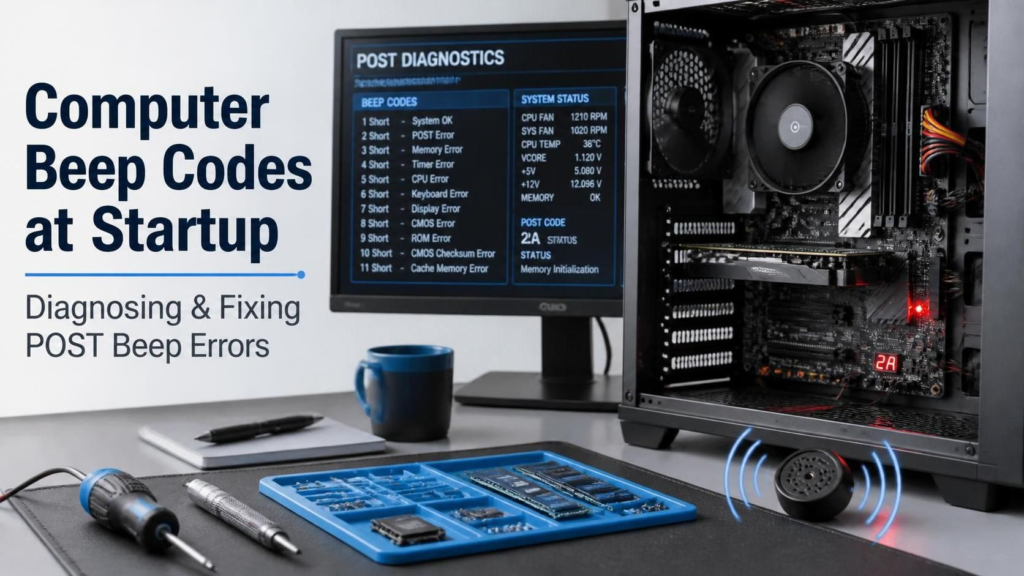
Few sounds are more alarming to a PC owner than pressing the power button and—instead of the familiar fan whir and logo—being greeted by a series of angry beeps and a black screen. 🔇➡️🔊 Those beeps are not a death rattle. They are a deliberate, standardized diagnostic language known as POST beep codes, and once you learn to speak it, you can often identify a hardware fault in seconds—before you even open the case.
In this in-depth guide you’ll learn what POST actually is, why computers beep, how to identify your BIOS/UEFI maker, and how to decode the beep patterns of every major firmware vendor—AMI, Award, Phoenix, and IBM—plus OEM systems from Dell, HP, Lenovo, and Apple. You’ll also get a field-tested, step-by-step fixing workflow, prevention tips, and a full FAQ. Bookmark this page 📌—it’s the only beep-code reference you’ll ever need.
📑 Table of Contents
- 🧠 What Is POST? The 20-Second Health Check
- 🔊 What Are Beep Codes & Why Do They Exist?
- 👂 How to “Read” Beep Codes Like a Pro
- 🏷️ Step 1: Identify Your BIOS Maker
- 📋 AMI BIOS Beep Codes
- 📋 Award BIOS Beep Codes
- 📋 Phoenix BIOS Beep Codes
- 💻 OEM Beep Codes: Dell, HP, Lenovo & Mac
- 🛠️ Step-by-Step: Fixing the Most Common Beep Errors
- 🤫 No Beeps + No Display? What Silence Means
- 🧰 Essential Tools for DIY Diagnosis
- 🛡️ Prevention: Stop Beep Codes Before They Start
- ❓ FAQ
- 🏁 Conclusion & References
🧠 1. What Is POST? The 20-Second Health Check Your PC Runs Every Boot
Every time you press the power button, your computer’s firmware (BIOS or UEFI) runs a routine called the Power-On Self-Test (POST) [[54]]. Before a single byte of Windows, macOS, or Linux is loaded, POST verifies that the essential hardware—CPU, RAM, graphics, chipset, and basic I/O—is present and functioning [[60]].
Think of POST as a pilot’s pre-flight checklist ✈️. If everything passes, the firmware hands control to the operating system and (on many boards) emits one short, friendly beep—the universal “all clear.” If something fails before the video system is initialized, the screen can’t display an error message… so the firmware beeps the error at you instead [[59]].
💡 Quick fact: POST begins the instant the CPU receives power and executes the reset vector—the first instruction hard-wired into the processor [[56]].
🔊 2. What Are Beep Codes & Why Do They Exist?
A beep code is a pattern of long and short tones generated by the motherboard’s internal speaker (or a chassis buzzer) to report a POST failure [[58]]. They exist for one simple reason: early in the boot process, the display may not work yet, so sound is the only communication channel available [[54]].
Key things to understand:
- 🗣️ Beep codes are “spoken” in the dialect of your BIOS vendor. The same three beeps can mean completely different things in AMI, Award, and Phoenix firmware [[3]].
- 🏭 OEMs customize the language. Dell, HP, and Lenovo publish their own beep/LED code tables that override the generic ones [[25]].
- 🔉 No speaker = no beeps. Many modern builds omit the case speaker, which is why some PCs fail in total silence.
👂 3. How to “Read” Beep Codes Like a Pro Technician
Before matching beeps to a table, capture the pattern accurately:
| ✅ Do | ❌ Don’t |
|---|---|
| Count long vs short beeps separately (long ≈ 2–4× the short duration) | Assume all beeps are identical |
Note the pauses—Phoenix codes like 1-3-3-1 are grouped by silence | Guess from memory after one listen |
| Let the cycle repeat 2–3 times to confirm | Panic and force-shutdown mid-POST |
| 📱 Record the beeps on your phone and replay slowly | Rely on a table for the wrong BIOS vendor |
⚠️ Warning: Always match codes against the table for your exact BIOS/UEFI vendor and model. Generic tables are a starting point; the manufacturer’s documentation is the final authority [[47]].
🏷️ 4. Step 1: Identify Your BIOS Maker
Not sure which firmware you’re running? Try these:
- 🖥️ Watch the first boot screen — the vendor logo (AMI, Award, Phoenix) usually flashes for a second.
- ⌨️ Enter setup (usually
Del,F2, orF10) — the BIOS maker and version appear at the top. - 🪟 In Windows: press
Win + R, typemsinfo32, and check BIOS Version/Date. - 📦 Check your motherboard manual or the OEM support site.
Rule of thumb: most custom desktop boards (ASUS, MSI, Gigabyte, ASRock) ship AMI (Aptio) or legacy Award/Phoenix firmware, while prebuilt systems from Dell/HP/Lenovo use customized versions with their own codes [[4]].
📋 5. AMI BIOS Beep Codes (American Megatrends)
AMI is the most common firmware in custom desktops. Full official checkpoint/beep documentation is published by AMI itself [[7]], and a plain-English list is maintained by Computer Hope [[3]]:
| 🔊 Beep Pattern | 🧩 Likely Meaning | 🛠️ First Fix to Try |
|---|---|---|
| 1 short | ✅ Normal POST — all OK | Nothing! Enjoy your day |
| 2 short | Parity circuit failure (RAM) | Reseat / test RAM |
| 3 short | Base 64K RAM failure | Reseat / replace RAM |
| 4 short | System timer failure | Motherboard service |
| 5 short | Processor (CPU) failure | Reseat / inspect CPU |
| 6 short | Keyboard controller (Gate A20) error | Check keyboard / board |
| 7 short | Virtual mode exception error | CPU / motherboard |
| 8 short | Display memory read/write failure | Reseat / replace GPU |
| 9 short | ROM BIOS checksum failure | Reflash / replace BIOS chip |
| 10 short | CMOS shutdown register error | Replace CMOS battery |
| 11 short | Cache memory error | Motherboard service |
| 1 long + 2 short | Video adapter failure | Reseat / replace GPU |
| 1 long + 3 short | Conventional/extended memory failure | Reseat / replace RAM |
| 1 long + 8 short | Display/retrace test failed | Check GPU & monitor |
| Two-tone siren 🚨 | Low CPU fan speed / voltage issue | Clean or replace CPU fan |
📋 6. Award BIOS Beep Codes
Award (later merged with Phoenix) uses a shorter vocabulary [[10]]:
| 🔊 Beep Pattern | 🧩 Meaning | 🛠️ Action |
|---|---|---|
| 1 short | Normal POST, system OK | None |
| 2 short | Minor POST error — check the on-screen message / CMOS settings | Enter setup, load defaults |
| 1 long + 1 short | Motherboard problem | Inspect board, clear CMOS |
| 1 long + 2 short | Video error — BIOS can’t initialize the display | Reseat / replace GPU |
| 1 long + 3 short | Video card not detected / keyboard error | Reseat GPU, check keyboard |
| Continuous long beeps 🔁 | Memory (RAM) problem | Reseat / test sticks one-by-one |
| Continuous short beeps 🔁 | Power supply problem | Test / replace PSU |
| Repeated high-frequency beeps while running | CPU overheating | Clean cooler, check fan & paste |
📋 7. Phoenix BIOS Beep Codes
Phoenix speaks in grouped pulses separated by pauses, e.g. 1-3-3-1 = beep, pause, 3 beeps, pause, 3 beeps, pause, 1 beep [[17]]. The complete sequence list runs into the hundreds [[20]]; these are the codes technicians see most often:
| 🔊 Pattern | 🧩 Meaning | 🛠️ Action |
|---|---|---|
| 1-1-3 | CMOS read/write failure | Replace CMOS battery / board |
| 1-1-4 | BIOS ROM checksum failure | Reflash BIOS |
| 1-2-1 | System timer failure | Motherboard service |
| 1-3-1 → 1-4-2 | Base RAM / parity failures | Reseat / replace RAM |
| 2-x-x (any code starting with 2) | Memory error | Test RAM modules individually |
| 3-1-1 → 3-1-4 | DMA / interrupt register failure | Motherboard service |
| 3-2-4 | Keyboard controller test failure | Check keyboard / board |
| 3-3-4 / 3-4-1 | Screen initialization / retrace failure | Reseat / replace GPU |
| 4-2-2 / 4-2-3 | Shutdown / Gate A20 failure | Motherboard service |
| 4-3-1 | RAM failure above 64K | Reseat / replace RAM |
| 4-4-1 / 4-4-2 | Serial / parallel port failure | Remove faulty port device |
💻 8. OEM Beep Codes: Dell, HP, Lenovo & Apple Mac
🔵 Dell
Dell publishes separate guides for laptops [[25]] and desktops [[26]]. The classic single-digit codes:
| 🔊 Beeps | 🧩 Meaning |
|---|---|
| 1 | BIOS ROM corruption / motherboard |
| 2 | No RAM detected |
| 3 | Chipset / motherboard failure |
| 4 | RAM read-write failure |
| 5 | CMOS / RTC battery failure |
| 6 | Video card or controller failure |
| 7 | CPU failure |
| 8 | LCD / display failure |
Newer Dell models switch to paired codes (e.g., 2-3 = memory failure) combined with LED blink patterns [[27]].
🟢 HP
HP encodes errors as long red blinks (major) + short white blinks (minor) on the power/Caps Lock LED, mirrored by beeps [[33]]:
| 🔴🔴 Pattern | 🧩 Meaning |
|---|---|
| 2 long + 2 short | BIOS corruption / failed update |
| 3 long + 2 short | Memory failure — run memory test |
| 3 long + 3 short | Graphics chip failure |
| 3 long + 4 short | Power system failure |
| 3 long + 5 short | CPU not detected |
| 4 long + 2 short | CPU overheating |
| 4 long + 3 short | System temperature too high |
🔴 Lenovo
Lenovo documents POST beep symptoms per family—see ThinkCentre beep symptoms [[41]] and ThinkWiki error codes [[42]]:
| 🔊 Pattern | 🧩 Meaning |
|---|---|
| 3 short + 1 long | Memory not detected — reseat modules |
| 2 long + 3 short | Video card / onboard video not detected |
| 4 long (+ error 8998/8999) | Not enough PCIe/MMIO resources |
| 2 short | General POST error — read on-screen code |
🍎 Apple Mac
Macs replace beeps with startup tones (and on newer models, LED flashes):
| 🎵 Tone | 🧩 Meaning |
|---|---|
| 1 high tone + 4 higher tones | Memory (SIMM/RAM) problem |
| Two sets of error tones | Logic board / bus problem |
| Chime, drive spins, no video | Video controller problem |
| Powers on, no tone at all | Logic board problem |
🛠️ 9. Step-by-Step: Fixing the Most Common Beep Errors
Roughly 80% of beep-code failures trace back to RAM, the GPU, or stale CMOS settings. Work through this ladder in order:
Step 0 — ⚡ Safety first. Power off, unplug the wall cable, and hold the power button 10 seconds to drain capacitors. Ground yourself on the case before touching components.
Step 1 — 🧠 Reseat the RAM. Release the clips, lift the stick, gently wipe the gold contacts with a clean pencil eraser, and press it back until both clips click. Mis-seated memory is the #1 cause of memory beep codes [[68]].
Step 2 — 🧪 Isolate with one stick. If beeps continue, test one module at a time in different slots. If one stick works alone and another doesn’t, you’ve found the culprit [[61]].
Step 3 — 🎮 Reseat the graphics card. For 1 long + 2 short (AMI/Award) style video codes, remove and reseat the GPU, and re-check its power connectors [[65]].
Step 4 — 🔋 Clear CMOS. Remove the coin-cell battery for 5 minutes (or use the CLR_CMOS jumper) to reset corrupted settings—this alone clears many mysterious beep loops.
Step 5 — 🔌 Strip the system. Unplug everything non-essential (USB devices, extra drives, add-in cards). A shorted peripheral can halt POST.
Step 6 — ⚡ Check the PSU. Continuous short beeps (Award) point at power delivery. Verify the 24-pin and CPU 4/8-pin connectors are fully seated.
Step 7 — 🔍 Inspect & clean. Look for bulging capacitors, dust blankets in the RAM slots, and corroded contacts. Dust is a genuine, documented cause of intermittent POST failures [[64]].
Step 8 — 🧬 BIOS recovery. For checksum/ROM codes, use the vendor’s recovery tool (many boards support crash-free BIOS recovery from a USB stick).
🤫 10. No Beeps + No Display? What Silence Means
Total silence with a black screen usually means POST never started at all: dead PSU, failed motherboard, missing case speaker, or a CPU that isn’t initializing [[52]]. Test with a known-good PSU first, and install a cheap motherboard speaker so future failures can actually talk to you.
🧰 11. Essential Tools for DIY Diagnosis
- 🔩 Anti-static wrist strap & #2 Phillips screwdriver
- 🧽 Pencil eraser + 90% isopropyl alcohol (contact cleaning)
- 🔊 Internal PC speaker (~$3, but priceless for diagnostics)
- 🧠 Known-good RAM stick & PSU for swap-testing
- 📱 Phone camera to record beep/LED patterns
🛡️ 12. Prevention: Stop Beep Codes Before They Start
- 🌬️ Clean dust every 6–12 months—heat kills RAM and CPUs.
- 🔋 Replace the CMOS battery every 3–5 years.
- ⚡ Use a surge protector or UPS; dirty power corrupts BIOS settings.
- 🚫 Never RAM-upgrade with the PSU switched on.
- 🧬 Update BIOS only when needed, and never interrupt an update.
❓ 13. Frequently Asked Questions (FAQ)
Q: Is one short beep a problem? 🔊
A: No—one short beep is the classic “POST passed” signal on AMI/Award/IBM systems [[47]].
Q: My PC beeps 3 times and won’t start. What is it?
A: On AMI, 3 short beeps = base memory failure; on many OEMs, 3 beeps = RAM. Start with reseating memory [[3]].
Q: Can a dead CMOS battery cause beep codes?
A: Yes—several vendors (e.g., Dell code 5) explicitly flag RTC/CMOS battery failure with beeps [[26]].
Q: Do modern UEFI PCs still beep?
A: Many still support a speaker header, but most UEFI OEMs prefer LED blink patterns; HP and Dell combine both [[33]].
Q: Why does my PC beep but the screen stays black?
A: The failing component is usually upstream of video initialization—typically RAM, CPU, or the GPU itself.
Q: When should I see a professional?
A: After you’ve reseated RAM/GPU, cleared CMOS, and tested the PSU—if beeps persist, you’re likely facing a motherboard or CPU fault that needs board-level repair.
🏁 14. Conclusion
Startup beep codes are your computer’s oldest and most honest diagnostic tool—a Morse-code-style report card written in sound. By identifying your BIOS vendor, matching the pattern against the right table, and following the systematic fix ladder above, you can resolve the vast majority of POST failures at home, save money, and skip unnecessary repair-shop visits. 💪