📌 Your Definitive Troubleshooting Manual for Resolving InstaPay Egypt Activation Issues, Verification Failures & Account Setup Problems
📑 Table of Contents
- 🔍 What Is InstaPay and Why Activation Errors Happen
- ⚠️ Common InstaPay Activation Errors Explained
- ✅ Prerequisites Before You Begin Activation
- ⚡ Quick Fixes to Try First
- 📱 Step-by-Step Activation Error Fixes
- 🏦 Bank-Specific Activation Issues & Solutions
- 🔐 Identity Verification & National ID Problems
- 📲 App & Device Troubleshooting
- 📊 Error Code Quick Reference Table
- 🛡️ Security Tips During Activation
- ❓ Frequently Asked Questions
- ✅ Final Activation Checklist
🔍 What Is InstaPay and Why Activation Errors Happen
InstaPay is Egypt’s leading instant payment network, licensed by the Central Bank of Egypt (CBE) and operated through the Egyptian Banks Company. It allows users to transfer money instantly between different Egyptian banks, pay bills, and manage finances through a single mobile application — all in real-time, 24/7.
Since its launch, InstaPay has processed millions of transactions, connecting major banks like the National Bank of Egypt (NBE), Commercial International Bank (CIB), Banque Misr, QNB Alahli, and many others under one unified platform.
However, the activation process can be tricky. Many users encounter errors during signup, bank account linking, mobile number verification, or National ID validation. These errors often stem from mismatched data between your bank records and your InstaPay registration details, outdated banking information, device compatibility issues, or temporary server overloads.
Understanding the root cause is the first step toward a successful activation. Let’s break it all down.
⚠️ Common InstaPay Activation Errors Explained
Before diving into solutions, here are the most frequent error messages users face during InstaPay activation:
| Error Message / Code | What It Means | Common Cause |
|---|---|---|
| “Mobile number not registered” | Your phone number isn’t linked to your bank account | Outdated bank records |
| “National ID verification failed” | ID number doesn’t match bank records | Typo or expired ID |
| “Account already exists” | Your credentials are already in the system | Previous registration attempt |
| “OTP not received” | Verification code failed to arrive | Carrier delay or wrong number |
| “Bank connection timeout” | InstaPay can’t reach your bank’s servers | Bank server maintenance |
| “Invalid card or account” | The card/account details entered are incorrect | Wrong card number or inactive account |
| “Device not supported” | Your phone fails compatibility checks | Outdated OS or rooted device |
| “Maximum attempts exceeded” | Too many failed verification tries | Temporary account lockout |
✅ Prerequisites Before You Begin Activation
To avoid errors from the start, ensure you meet these requirements before opening the InstaPay app:
📋 Required Documents & Information
| Requirement | Details |
|---|---|
| National ID | Valid Egyptian National ID (must not be expired) |
| Mobile Number | The number registered at your bank — not just any number |
| Bank Card | An active debit card from a supported Egyptian bank |
| Bank Account | Account must be active and not dormant |
| Age | You must be 18+ years old |
📱 Device Requirements
| Specification | Minimum Requirement |
|---|---|
| Operating System | Android 8.0+ or iOS 14+ |
| Internet Connection | Stable Wi-Fi or 4G/5G mobile data |
| Storage Space | At least 200 MB free |
| Permissions | Camera (for ID scanning), SMS (for OTP), Location |
💡 Critical Tip: The mobile number you use for InstaPay must be the exact same number registered with your bank. If you’ve changed your number at the bank but haven’t updated it, activation will fail.
⚡ Quick Fixes to Try First
Before diving into detailed troubleshooting, these quick fixes resolve many activation issues immediately:
🔄 1. Use the Correct Mobile Number
Call your bank’s customer service and confirm which mobile number is registered to your account. If it’s outdated, visit a branch to update it before trying InstaPay again.
⏻️ 2. Restart Your Phone and Router
A fresh start clears temporary network glitches that might interrupt the connection between InstaPay and your bank’s servers.
📲 3. Download the Official App Only
Ensure you’re using the genuine InstaPay app:
- Android: Google Play Store
- iOS: Apple App Store
Avoid APK downloads from third-party websites — they often cause activation errors and security risks.
✈️ 4. Toggle Airplane Mode
Turn Airplane Mode ON for 10 seconds, then OFF. This refreshes your mobile network connection and can resolve OTP delivery issues.
🕐 5. Try During Off-Peak Hours
Bank servers and InstaPay experience heavy traffic during:
- Salary deposit days (1st–5th of each month)
- Evening hours (6:00 PM – 10:00 PM)
- Weekends (Thursday night – Friday)
Try activating early in the morning (8:00 AM – 10:00 AM) for the smoothest experience.
📱 Step-by-Step Activation Error Fixes
Here are detailed solutions for the most persistent InstaPay activation errors:
✅ Fix 1: “Mobile Number Not Registered” Error
This is the #1 reason for activation failure. InstaPay validates your mobile number against your bank’s database in real-time.
Step-by-Step Solution:
| Step | Action |
|---|---|
| 1 | 📞 Call your bank’s hotline (NBE: 19623, CIB: 19666, Banque Misr: 19680) |
| 2 | 🆔 Verify your identity with your National ID and account details |
| 3 | 📱 Ask: “What mobile number is registered to my account?” |
| 4 | ✏️ If it’s wrong, request an update — some banks allow this via phone, others require a branch visit |
| 5 | ⏳ Wait 2-4 hours for the update to sync across banking systems |
| 6 | 🔄 Retry InstaPay activation using the updated number |
⚠️ Important: Updating your number at an ATM or via online banking may not immediately reflect in the InstaPay system. Branch updates are the most reliable.
✅ Fix 2: “National ID Verification Failed” Error
Your National ID number must match your bank records exactly.
Common Mistakes:
- ❌ Entering the old 14-digit ID instead of the new format
- ❌ Including spaces or dashes
- ❌ Using a passport or military ID (not accepted)
- ❌ Expired ID card
Solution:
- Check your ID expiry date — if expired, renew it at the Civil Registry Office first
- Enter the ID number exactly as it appears on your bank documents
- Ensure your name in InstaPay matches your bank account name character-for-character
- If recently renewed your ID, wait 24-48 hours for bank systems to update
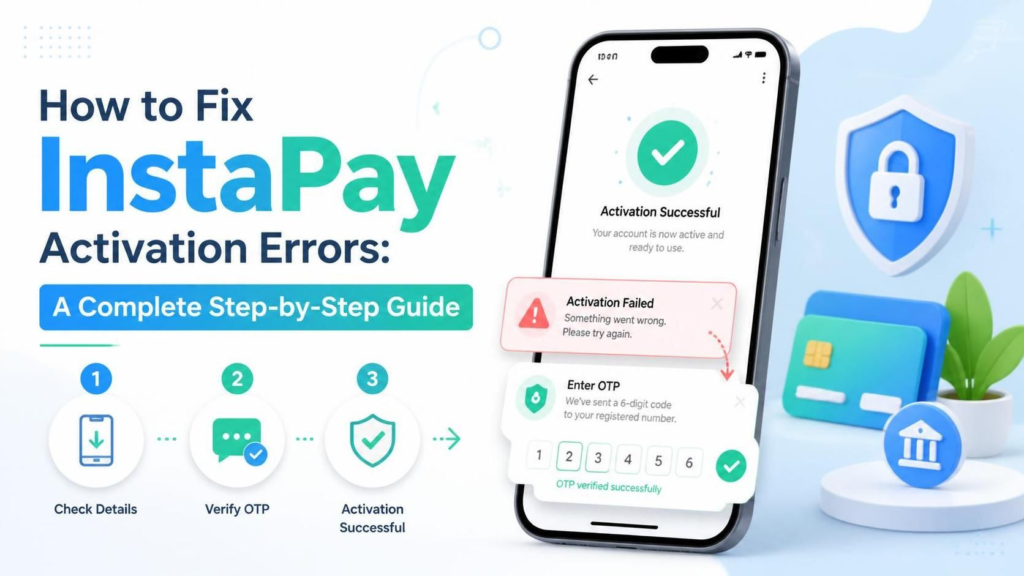
✅ Fix 3: “OTP Not Received” Error
The OTP is sent via SMS to your registered mobile number. If it doesn’t arrive:
| Check | Action |
|---|---|
| Signal strength | Ensure 2+ bars of mobile signal |
| Spam filters | Check blocked SMS and disable spam protection |
| Dual SIM | Ensure the correct SIM is selected for SMS |
| Roaming | If outside Egypt, enable international roaming |
| Carrier delay | Wait 60 seconds, then click “Resend” |
If you still don’t receive it after 3 attempts, wait 30 minutes before trying again to avoid temporary blocking.
✅ Fix 4: “Account Already Exists” Error
This happens if you previously started registration but didn’t complete it, or if someone accidentally used your number.
Solution:
- On the login screen, tap “Forgot Password”
- Enter your registered mobile number
- Complete the OTP verification
- Set a new password and log in
- If this fails, contact InstaPay support via the app or email
✅ Fix 5: “Bank Connection Timeout” Error
This indicates InstaPay cannot communicate with your bank’s API.
Solutions:
- 🕐 Wait 10-15 minutes and retry — your bank may be undergoing maintenance
- 🌐 Switch from Wi-Fi to mobile data (or vice versa)
- 🏦 Check your bank’s social media or website for maintenance announcements
- 📅 Try again during non-peak hours
✅ Fix 6: “Invalid Card or Account” Error
Your card or account may be inactive, expired, or not supported.
| Issue | Solution |
|---|---|
| Card expired | Use a valid, non-expired debit card |
| Account dormant | Visit your bank to reactivate the account |
| Credit card used | InstaPay requires a debit card or current/savings account |
| Wrong card number | Double-check every digit |
| New account | Wait 24-48 hours after opening before linking to InstaPay |
🏦 Bank-Specific Activation Issues & Solutions
Different banks have unique quirks when linking to InstaPay:
🏛️ National Bank of Egypt (NBE)
| Common Issue | Solution |
|---|---|
| Mobile number mismatch | Update at branch only — phone updates don’t sync to InstaPay |
| Delayed OTP | NBE’s SMS gateway can be slow; wait up to 5 minutes |
| Account type | Only individual accounts work — corporate accounts are not supported |
🏛️ Commercial International Bank (CIB)
| Common Issue | Solution |
|---|---|
| Card not recognized | Ensure it’s an active debit card, not a prepaid card |
| App crashes during linking | Update CIB Mobile app first, then retry InstaPay |
🏛️ Banque Misr
| Common Issue | Solution |
|---|---|
| National ID mismatch | Banque Misr requires exact name matching — middle names matter |
| Server timeouts | Most common on weekends — try weekday mornings |
🏛️ QNB Alahli
| Common Issue | Solution |
|---|---|
| Registration fails | QNB requires account to be active for at least 3 months |
| OTP issues | Use the number registered for QNB SMS alerts specifically |
🏛️ Other Supported Banks
InstaPay also supports AlexBank, Faisal Islamic Bank, AAIB, SAIB, and others. If your bank consistently fails, try linking a card from a different supported bank first, then add your primary bank later from within the app.
🔐 Identity Verification & National ID Problems
InstaPay uses AI-powered OCR (Optical Character Recognition) to scan your National ID. If scanning fails:
📸 Camera & Scanning Tips
| Tip | Why It Helps |
|---|---|
| Use natural daylight | Avoid shadows and glare on the ID |
| Place ID on a dark background | Increases contrast for OCR |
| Ensure all four corners are visible | The app needs the full frame |
| Don’t use flash | Creates hotspots that blur text |
| Hold steady for 3 seconds | Allows autofocus to lock |
📝 Manual Entry Fallback
If scanning fails repeatedly:
- Look for “Enter Details Manually” at the bottom of the scan screen
- Type your full name exactly as on the ID
- Enter the ID number without spaces
- Input your date of birth in the format: DD/MM/YYYY
⚠️ Name Mismatch Alert: If your bank account uses a shortened name (e.g., “Mohamed” vs “Mohammed”), try both variations. If activation still fails, visit your bank to standardize your name across all documents.
📲 App & Device Troubleshooting
Sometimes the problem isn’t your bank — it’s your phone.
🛠️ Fix App Crashes & Freezes
Android:
Settings → Apps → InstaPay → Storage → Clear CacheIf crashes persist: Clear Data (you’ll need to re-enter registration details)
iPhone:
Offload App: Settings → General → iPhone Storage → InstaPay → Offload App → Reinstall🛠️ Fix “Device Not Supported” Error
| Cause | Solution |
|---|---|
| Rooted / Jailbroken device | InstaPay blocks modified devices for security. Use a stock phone. |
| Outdated OS | Upgrade to Android 8.0+ or iOS 14+ |
| Developer options enabled | Disable USB debugging and mock locations |
| VPN active | Disconnect VPN — InstaPay may flag it as suspicious |
🛠️ Fix Network & Connectivity Issues
# Android: Reset network settings
Settings → System → Reset Options → Reset Wi-Fi, Mobile & Bluetooth
After resetting, reconnect to Wi-Fi and retry activation.
📊 Error Code Quick Reference Table
| Error / Message | Immediate Fix | If That Fails |
|---|---|---|
| “Mobile not registered” | Confirm & update number at bank | Visit branch for manual update |
| “ID verification failed” | Check expiry, re-scan in daylight | Enter manually, verify bank records |
| “OTP not received” | Toggle airplane mode, check spam | Wait 30 min, try different network |
| “Account exists” | Use “Forgot Password” | Contact InstaPay support |
| “Bank timeout” | Switch network, wait 15 min | Try during off-peak hours |
| “Invalid card” | Use active debit card | Visit bank to verify account status |
| “Device unsupported” | Update OS, disable VPN/root | Use a different phone |
| “Max attempts exceeded” | Wait 1 hour before retrying | Contact support if locked >24 hrs |
🛡️ Security Tips During Activation
While fixing activation errors, protect yourself from scams:
| ✅ Do This | ❌ Never Do This |
|---|---|
| Download InstaPay only from official stores | Click links in WhatsApp/Telegram claiming to be InstaPay |
| Complete activation on your own device | Let a shopkeeper or stranger “help” with your OTP |
| Use a strong, unique PIN | Use your birthdate or “123456” as your InstaPay PIN |
| Enable biometric login if available | Share your InstaPay password with family members |
| Verify your bank’s official support number | Call numbers from unofficial Facebook pages |
🚨 Scam Warning: InstaPay and Egyptian banks will never call you asking for your OTP, PIN, or password. If someone calls claiming to be “InstaPay Support” and asks for these, it is fraud. Hang up immediately.
❓ Frequently Asked Questions
❓ Q1: How long does InstaPay activation take?
A: Under normal circumstances, activation takes 5 to 15 minutes. If your bank records are fully updated and your ID is valid, you can be sending money within minutes. However, if there are data mismatches, it can take 24-48 hours to resolve after visiting your bank.
❓ Q2: Can I register multiple bank accounts on InstaPay?
A: Yes! Once activated, you can link multiple accounts and cards from different supported Egyptian banks. This is actually one of InstaPay’s biggest advantages — unified management across all your banks.
❓ Q3: Why does my bank say my number is updated, but InstaPay still rejects it?
A: Banks often update numbers in their core banking system but fail to sync with the instant payment network gateway. Ask your bank specifically to update your number for “Instant Payment Services” or “CBE Network” — not just general contact info.
❓ Q4: Can I use InstaPay without a National ID?
A: No. InstaPay requires a valid Egyptian National ID for identity verification. Passports, driving licenses, and military IDs are not accepted for individual accounts.
❓ Q5: What if I changed my phone number and can’t access my old InstaPay account?
A: Contact InstaPay support through their official channels. You’ll need to verify your identity with your National ID and possibly visit a bank branch to re-verify your new number.
❓ Q6: Is there a fee for activating InstaPay?
A: No. InstaPay activation is completely free. You only pay transaction fees when transferring money (typically EGP 5-10 per transfer, depending on the amount and bank).
❓ Q7: Can expats or foreigners activate InstaPay?
A: Currently, InstaPay is designed for Egyptian citizens and residents with Egyptian bank accounts and National IDs. Foreign residents with Egyptian bank accounts should check with their specific bank for eligibility.
✅ Final Activation Checklist
Before giving up or calling support, confirm you’ve completed every item:
- 📱 Downloaded the official InstaPay app from Play Store or App Store
- 📞 Verified your mobile number matches your bank’s records exactly
- 🆔 Confirmed your National ID is valid and not expired
- 🏦 Ensured your bank account is active (not dormant or closed)
- 💳 Using an active debit card from a supported Egyptian bank
- 📲 Updated your phone to Android 8.0+ or iOS 14+
- 🌐 Connected to stable internet (Wi-Fi or 4G/5G)
- ✈️ Toggled Airplane Mode to refresh network connection
- 🧹 Cleared InstaPay app cache (Android) or reinstalled (iOS)
- ⏳ Attempted activation during off-peak hours
- 🚫 Disconnected VPN and disabled developer options
- 📸 Scanned ID in good lighting with all corners visible
- ⏱️ Waited 2-4 hours after updating bank records before retrying
- 📧 Contacted bank to confirm “Instant Payment” network sync
🎯 Conclusion
InstaPay activation errors are frustrating, but they’re almost always solvable. The vast majority of failures stem from one root issue: mismatched data between your bank and the InstaPay system. Whether it’s an outdated mobile number, a name discrepancy, or an expired National ID, the solution typically requires a quick update at your bank branch followed by patience as systems synchronize.
By following the step-by-step fixes in this guide — from verifying your registered number and ensuring ID compatibility, to troubleshooting app crashes and network timeouts — you can overcome virtually any activation hurdle.
🏆 Key Takeaway: Before blaming the app, always verify your bank records first. The InstaPay app itself is robust; the activation bottleneck usually lies in outdated or inconsistent banking data. A 10-minute visit to your bank branch to update your mobile number and confirm your ID details can save hours of frustration.
Once activated, InstaPay opens the door to seamless, instant financial transactions across Egypt’s banking landscape — making the activation effort well worth it.
📅 Last Updated: September 2026
🔗 External Resources: